Checkout and Payment
Last updated September 27, 2026
Once your quote is configured, checkout takes a couple of minutes. This article walks through the order summary, payment, and what happens after you pay.
Step 1: Review the order summary
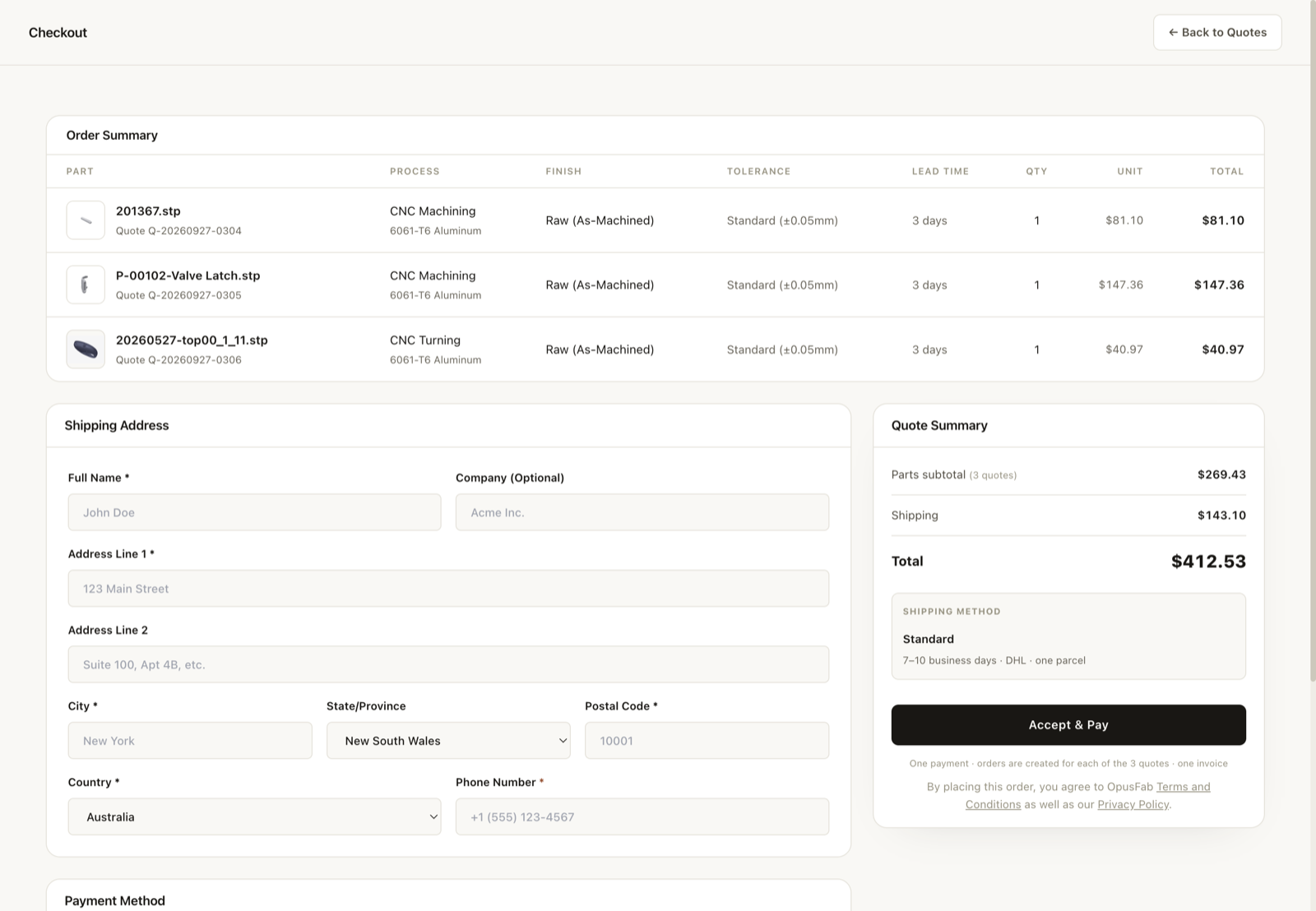
Checkout opens with a summary table listing every part in the order. Each row shows:
- Part file
- Quantity
- Material
- Finish
- Process
- Tolerance
- Lead time
- Price
Check each row carefully before paying. Two things worth a deliberate look:
- Tolerance. The table shows the tolerance applied to each part, for example Standard (±0.05mm) for CNC parts and Standard (±0.5mm) for 3D printed parts (SLA, SLS, SLM). CNC parts also offer a Precision (±0.01mm) tier in the editor, and custom tolerances can be specified with an uploaded 2D drawing (PDF, DXF, or DWG). See tolerances explained.
- Lead time. The order lead time is the longest lead time of any part in the batch. If one part is slowing everything down, you can go back and split the order.
If anything looks wrong, return to the quote table, edit the part, and come back to checkout. The summary always reflects the current configuration.
Step 2: Pay via Stripe
Payment is handled by Stripe, a third-party payment processor. Checkout today accepts credit and debit cards: you enter your card details on Stripe’s secure payment form, and your card information goes to Stripe and is not stored by OpusFab.
For larger orders, ACH and bank transfer payment options are planned. In the meantime, if you are placing a large order, contact us or request a custom quote and the sales team will arrange payment with you.
The total charged is the order summary total, which includes all parts, the production speed you selected for the batch, and shipping. Orders ship via DHL, consolidated into one parcel per order where possible.
Step 3: What happens after payment
Once payment succeeds:
- Your order is confirmed and enters production scheduling.
- Each part is manufactured to the process, material, finish, and tolerance shown in your order summary.
- Parts are finished and quality checked, then packed for shipment.
- Your order ships via DHL, consolidated into one parcel where possible, and a tracking number is issued.
You will be notified as the order moves through these stages.
Finding your order in the dashboard
The dashboard has two sections relevant here:
- Quotes: everything you have configured and saved but not yet paid for. You can reopen a quote, change options, and check out later.
- Orders: everything you have paid for. Each order shows its current status, and once shipped, its DHL tracking number.
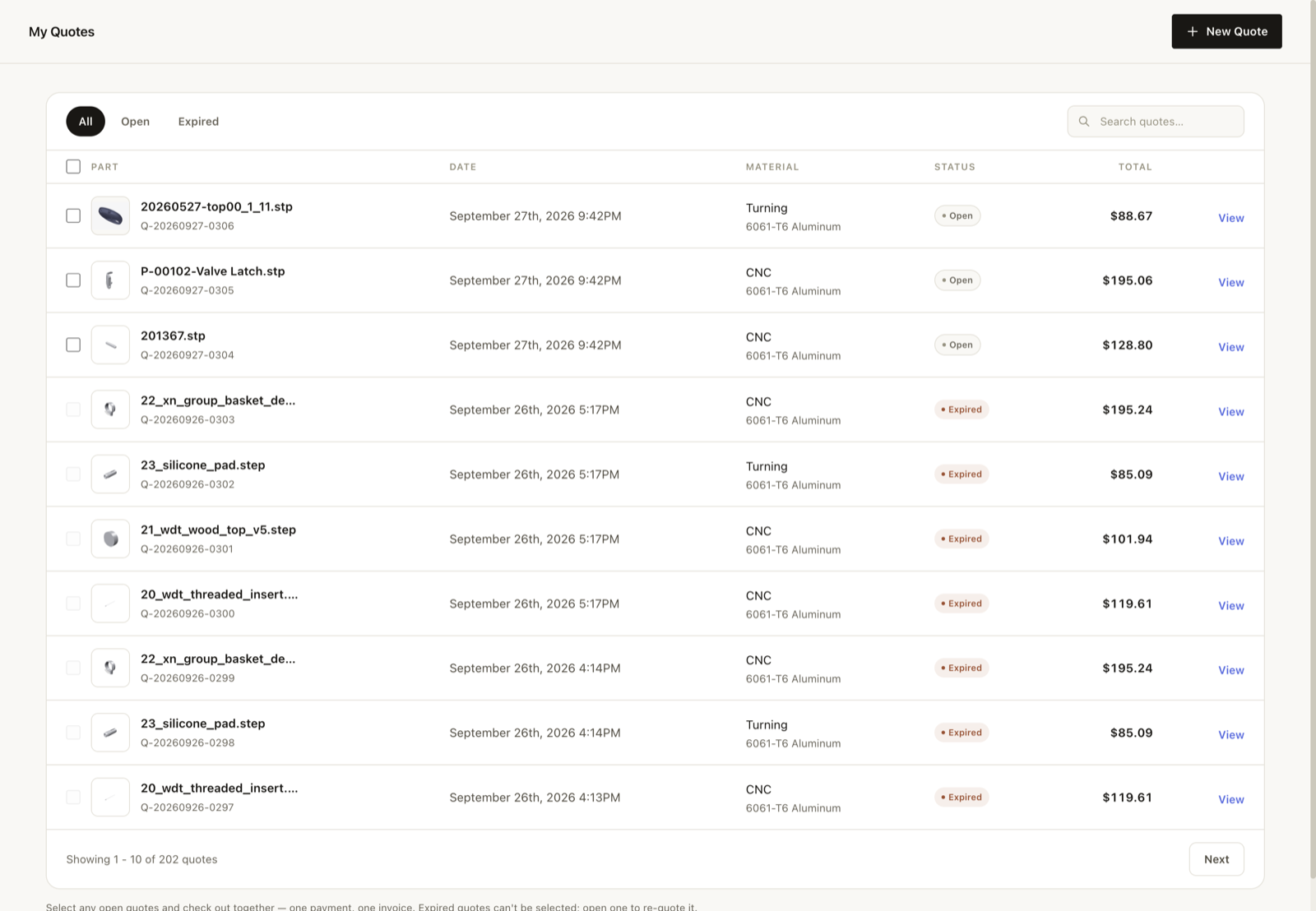
To check on an in-progress order, open the Orders section and click the order. The status updates as production and shipping progress. For more on delivery, see shipping and tracking.
Common questions
Can I change an order after paying? Once an order is in production, the configuration is locked. If you spot a mistake right after paying, contact support as soon as possible.
Can I get a receipt or invoice? Payment confirmation comes through at checkout, and the order record in your dashboard keeps the full summary of what was charged.
What if a part could not be quoted instantly? Parts over 100 units, or STEP files containing full assemblies, go through custom quotes instead. Those are confirmed by email with the sales team rather than through instant checkout.
For a recap of how the price you just paid was calculated, see understanding your quote.